
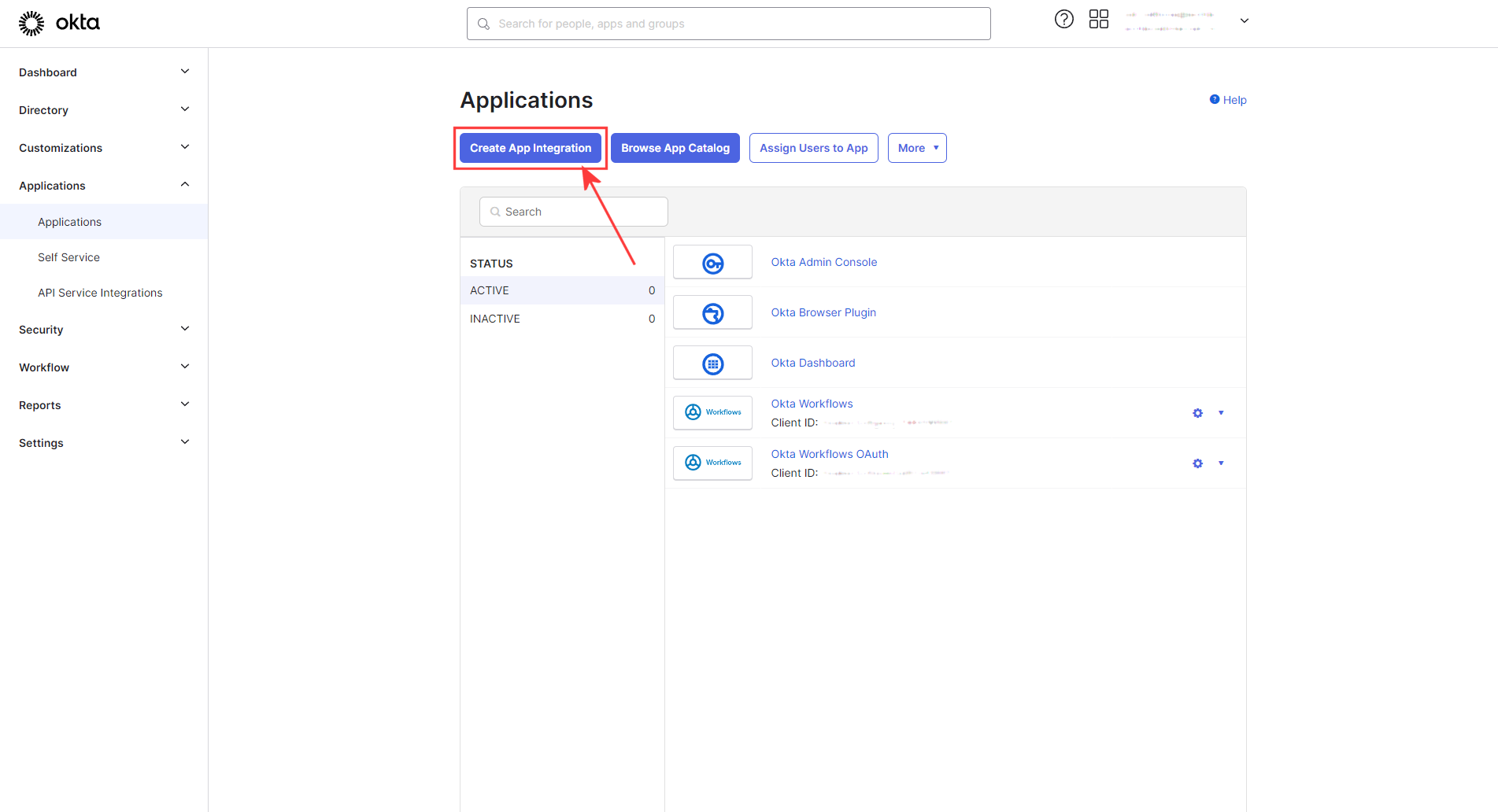
Sign into Okta. Under applications in the left menu, select Applications and click Create App Integration:
Configure SAML
In this section, tab between Apiboost the the identity provider, using the prepopulated fields to configure SAML in the IdP.
Continuing with Okta, Copy the ACS URL from Apiboost into the Single sign-on URL field in Okta:
Attribute/Group Attribute Statements
Skip for now, the purpose is to get SSO working. Data mapping will be covered later in this document.
For now, scroll down and click next and move forward to the third and final page of SAML Integration. These settings will be covered at the end.
Finish IdP Setup
The last page is fairly straightforward:
-
For customer or partner, select "I'm an Okta customer adding an Internal app"
-
For App type, select "This is an internal app that we have created,"
-
Finally, click Finish to save your new app.
Completing Apiboost Setup
This will require some tabbing back and forth. The same way fields were required first from Apiboost to set up Okta, now some data is needed from Okta to finish setting up Apiboost. From the side menu, click Applications, then click the one created using the steps above, and in the navigation tabs, click Sign On: