
This guide outlines the process of configuring a webhook integration in SwaggerHub and syncing it automatically with Apiboost. This will keep your API Documentation up to date in realtime without needing to manually sync changes within Apiboost.
For newly created API References in Apiboost, the API Reference will still need to be manually linked to an API Product for it to be visible to your API consumers. This sync process simply creates the API Reference. To manage the full lifecycle and connection between API Reference and Product, see our CI/CD Pipelines documentation.
Step 1: Generate a Webhook API Key
Configuring SwaggerHub Webhook
-
Open your API in the SwaggerHub editor.
-
In the right hand corner of SwaggerHub UI, hover over Sync and click “Set Up Integrations
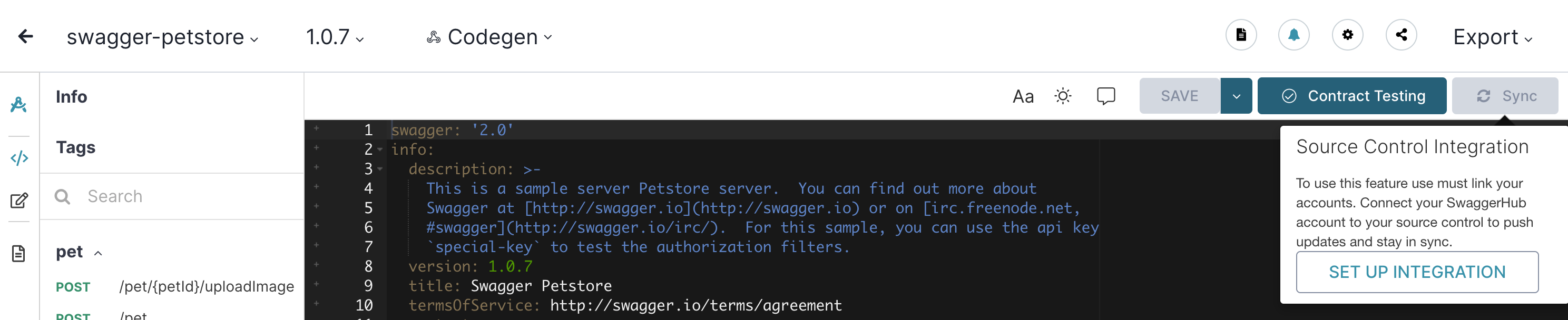
-
In the Integrations list, select Webhook
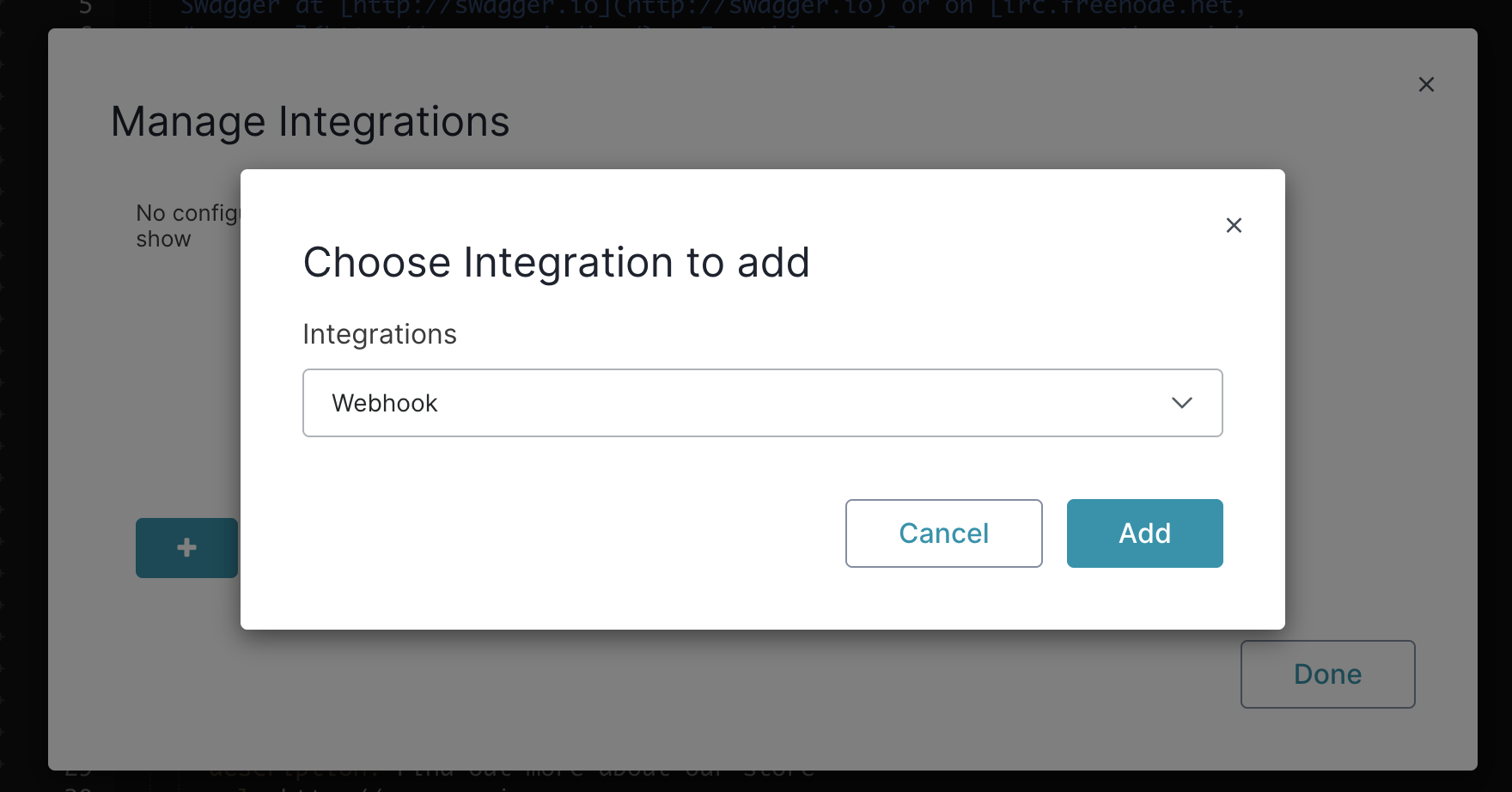
Webhook Configuration Details
-
Name: Choose a descriptive name for your webhook (e.g., "Apiboost Sync").
-
Payload URL: Enter
https://your-apiboost-domain.com/api/v1/sync-swaggerhub -
Content Type: Select
application/json -
Lifecycle Events: Choose the events that will trigger the webhook:
-
After API/version saved
-
After API/version published
-
-
Additional Headers: Add necessary authentication Header:
X-API-KEY: <paste-your-generated-key-here>. -
Click "Create" to add the webhook.
-
Click "Done" to complete the setup
Step 3: Test the Webhook
Trigger the webhook by performing the lifecycle event you selected (e.g., publish or save the API in SwaggerHub). Then check your Apiboost portal:
-
If Auto sync mode is enabled, the API Reference should update automatically.
-
If Manual sync mode is enabled, a new pending sync record will appear on the Pending Syncs page.
4. Configuring Sync Mode (Auto vs Manual)
You can control how incoming webhook updates are processed.
Steps
-
Navigate to **SwaggerHub Sync > Sync Settings** (or go to `/admin/config/apiboost/swaggerhub/sync`).
-
In the **Sync Mode** section, choose one of:
-
Auto — Incoming webhooks immediately update the API Reference. No admin action is needed.
-
Manual — Incoming webhooks create a pending sync record. An admin must review and approve the update before it is applied.
-
Click Save Sync Mode.
When to Use Each Mode
|
Mode |
Best For |
|---|---|
|
Auto |
Trusted development workflows where API changes should be reflected immediately (e.g., staging environments, internal portals). |
|
Manual |
Production portals where changes should be reviewed before going live, or when multiple teams publish APIs and you need oversight. |
Syncing with Apiboost
Once the webhook is configured, SwaggerHub will send a POST request to the specified Apiboost endpoin whenever the selected lifecycle events occur. The payload will either create an API Reference if one of the same name and version do not exist in Apiboost. Alternatively, if an API Reference is detected to use the API Documentation from SwaggerHub, it will be updated.